
Thunderbird is a friendly email client software for managing your email. You can set up a cPanel email account with Mozilla Thunderbird and receive/send the email.
1. Open Mozilla Thunderbird.

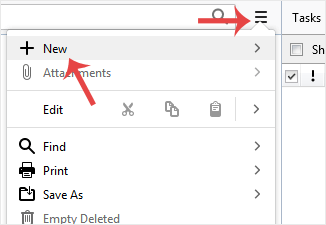
2. Click on the menu icon located on the right side of the screen and choose New. A drop box will open.
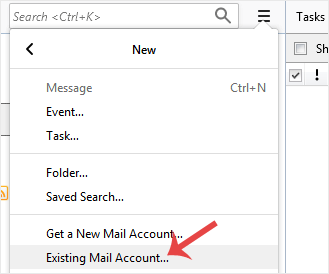
3. Click on Existing Mail Account.
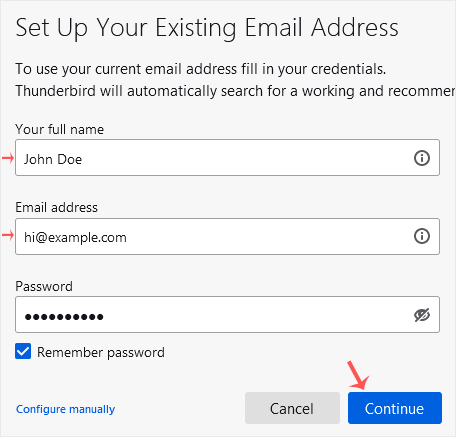
4. In the Mail Setup Account, fill out your name, full email address, and your email account password. Proceed with Continue.
5. It may take a few minutes to configure your email account. After that, click on Done.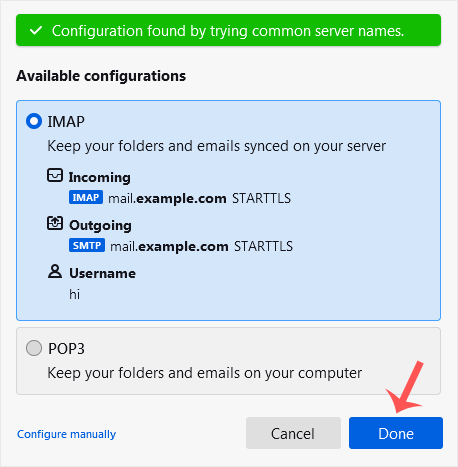
6. If it shows an SSL Security Exception, click on Confirm Security Exception and the warning will disappear.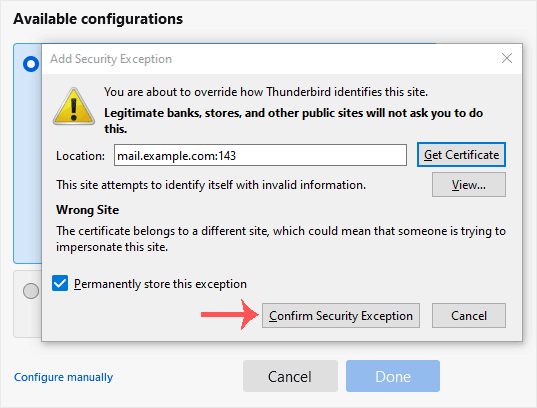
Congratulations, your email is set up successfully. You can now manage your email through Mozilla Thunderbird.
Kunnskapsbase
Dersom du ikke kan finne en løsning på ditt spørsmål eller problem i vår kunnskapsbase kan du få hjelp ved å kontakte oss. Velg den avdelingen som passer best fra listen under og send inn din henvendelse.
How to Setup a cPanel Email Account in Mozilla Thunderbird
0
Var dette svaret til hjelp?
Back
Updated knowledgebase article view